Screen Prank Locker: A macOS Prank App Built with Swift
How it started
There is an unwritten but strictly enforced rule in our team: if you leave your desk and forget to lock your laptop, you are buying the next round of beers. Usually, someone hijacks the abandoned machine and drops a generous-sounding post in the team chat: “Drinks are on me today!”. It’s a fun tradition, and it keeps everyone locking their screens.
At the last team event it finally caught up with me, and boom, I paid for drinks for seven colleagues. I paid up gladly. Still, messing with someone else’s laptop is a bit cheeky, so I built some retaliation.
Screen Prank Locker is a macOS app that covers all screens with invisible overlays, intercepts every keyboard and mouse event, and punishes anyone who dares to touch the machine. Imagine a lock screen, but with a slightly sadistic personality.
How it works
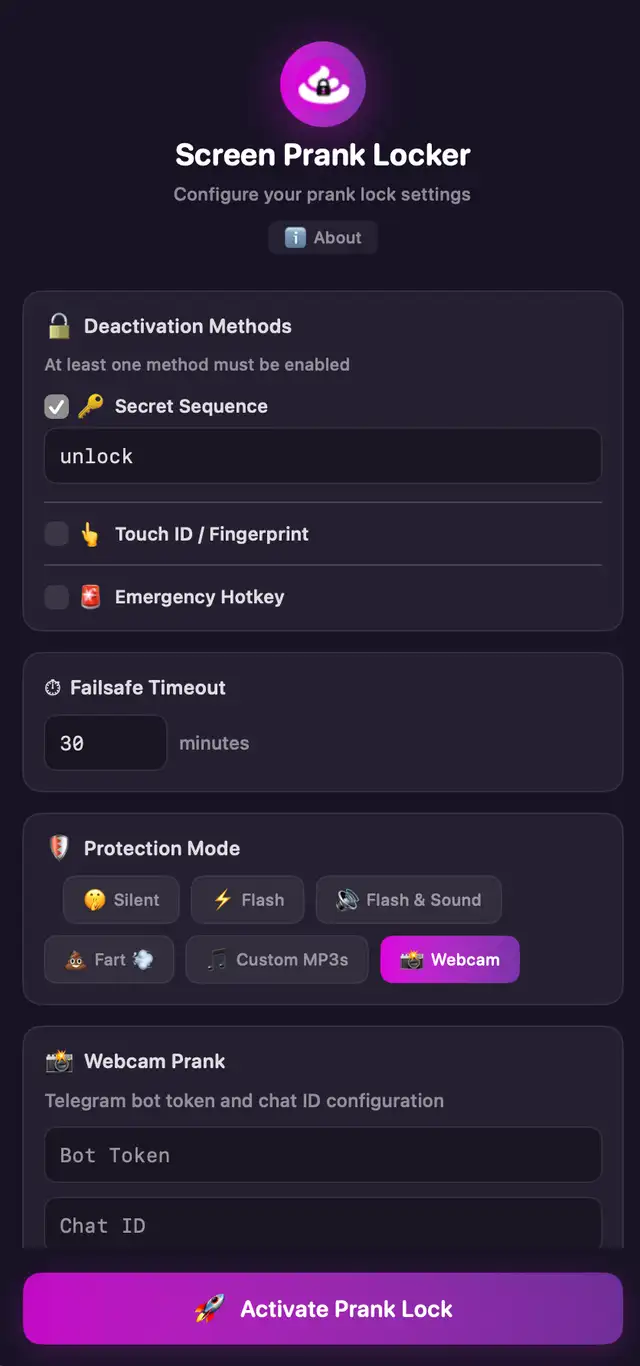
The app lurks silently in the background until you arm it. Once activated, it places transparent, full-screen windows over every connected monitor and swallows all input. The desktop looks normal and unlocked, a perfect honeypot for nosy coworkers. The victim sees the screen but can do absolutely nothing. Depending on the chosen protection mode, any attempt to interact triggers escalating and annoying reactions.
There are six different protection modes:
| Mode | What Happens |
|---|---|
| Silent | Nothing. The screen simply ignores the input. Maximum confusion. |
| Flash | The screen flashes white with every input attempt. |
| Flash & Sound | Strobe light effect paired with a customizable macOS system sound. |
| Fart Prank | Plays random fart noises (with a cooldown timer so the audio engine doesn’t crash). Classy. Embarrassing. |
| Custom MP3s | Fires off random MP3 files from a defined directory. |
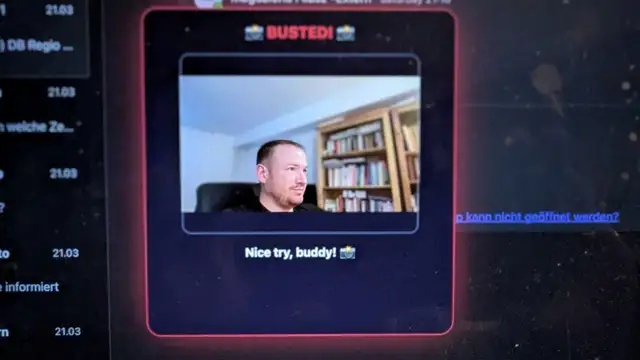
| Webcam Prank | Secretly snaps a photo of the intruder and plasters their confused face across the entire screen. |
The webcam mode is my personal favorite. You can even set up a Telegram integration to push the culprit’s photo directly to your phone in real-time.
The escape route
Naturally, the rightful owner needs a way back into the system. There are four ways out:
- Typing a secret string completely blind (Default:
unlock) - Touch ID (on supported Macs)
- An emergency keyboard shortcut (Ctrl + Option + Cmd + Q)
- A failsafe timeout that automatically kills the app after 30 minutes
The secret sequence is the most fun. You have to type the password without any visual feedback whatsoever, while the screen appears completely frozen. It feels exactly like defusing a bomb in a 90s action movie.
Under the hood
The app is written in Swift 5.9 and targets macOS 13+. It uses the Accessibility API to intercept global keyboard and mouse events, the exact same mechanism macOS uses for accessibility features. This allows Screen Prank Locker to capture and block inputs even when the app doesn’t have active focus.
Multi-display support was significantly trickier than I initially thought. The app dynamically adapts if monitors are connected or disconnected during an active session, creating or destroying the overlay windows on the fly.
All configurations are stored as JSON under ~/.prank-locker/config.json. This makes it super easy to tweak everything, from activation hotkeys to the fart noise cooldown timers, without having to click through a graphical UI.
Building and installing
The project uses Swift Package Manager and includes a handy Makefile with targets for all build steps:
make app    # Build the .app bundle
make dmg    # Create a distributable disk image
make pkg    # Create a macOS installer package
Since the app isn’t signed with an official Apple Developer certificate, macOS Gatekeeper will initially throw a fit and block the launch. You’ll need to strip the quarantine attribute after downloading:
xattr -cr /Applications/ScreenPrankLocker.appAfter that, it launches normally from the Applications folder or via Spotlight.
Permissions
The app needs Accessibility access to intercept inputs. Camera access is obviously optional (only required for the Webcam Prank mode), just like Touch ID. On first launch, Screen Prank Locker requests all necessary permissions at once and redirects the user straight to System Settings if anything is missing.
What I ran into
A few things about macOS development that aren’t on page one of the Apple docs. The Accessibility API is powerful, but the sandbox model is unforgiving: the app has to be authorized by hand in System Settings, and there is no way to force that from the background. Intercepting global events across multiple screens needs careful tracking of screen coordinates and display state as monitors come and go. And camera capture is straightforward on its own, but grabbing a sharp still at the right moment while someone is typing takes some fiddling with the timing.
Try it
You can find the full source code on GitHub. Grab a release DMG, remove the quarantine flag, and prank your colleagues. Though you might want to subtly warn them about the fart noises beforehand.
Disclaimer: Screen Prank Locker is purely a hobby project. Use it responsibly, or don’t, I’m not your boss.